Every business website has a job to do: turn visitors into genuine enquiries. But when contact form submissions remain inside an email inbox, sales teams may need to copy customer details manually, organise enquiries and remember follow-ups. This process becomes harder as enquiry volume increases.
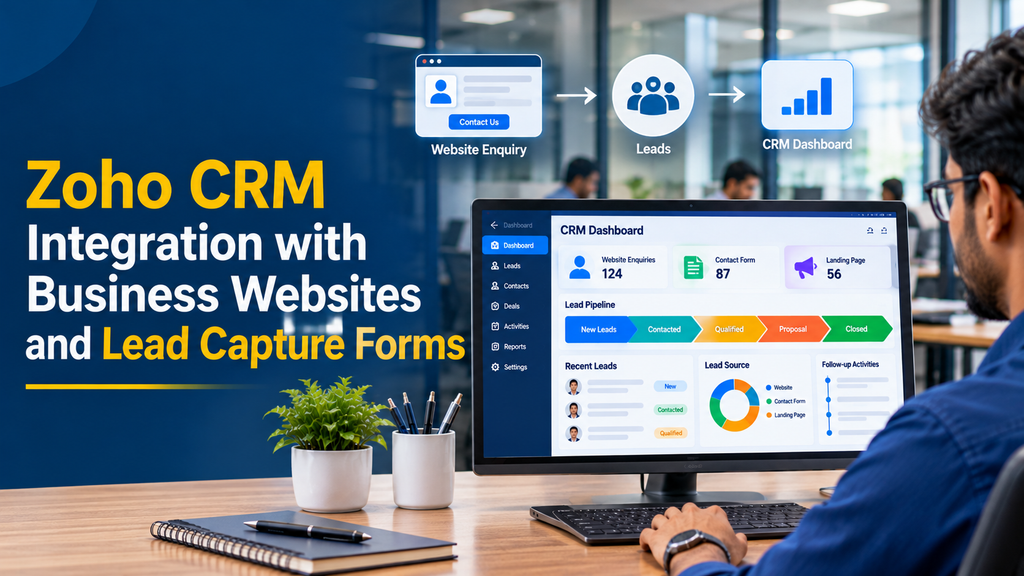
Zoho CRM integration with business websites connects website enquiry forms with a central customer relationship management system. When a visitor submits a form, the information can be captured in Zoho CRM as a lead or contact, assigned to the appropriate team member and included in the business’s follow-up workflow.
What Is Zoho CRM Website Integration?
Zoho CRM website integration is the process of connecting a business website with Zoho CRM so that information submitted by visitors can be transferred into the CRM system.
For example, a visitor may complete a request-a-quote form on a website. Instead of relying only on an email notification, the submitted information can create a new lead record in Zoho CRM. The sales team can then review the enquiry, contact the visitor and update the lead’s status.
Depending on the requirements, integration can cover:
- Contact and enquiry forms
- Request-a-quote forms
- Product and service enquiry forms
- Landing page registrations
- Appointment and consultation requests
- Brochure and catalogue requests
- Newsletter and event registration forms
- Custom enquiry workflows
How Does Website-to-Zoho CRM Integration Work?
The integration creates a connection between the website’s form submission process and the relevant Zoho CRM module. The exact implementation depends on whether the business uses a standard Zoho webform or a custom-built form.
- A visitor opens a website page.
- The visitor enters the required information in a form.
- The website validates the submitted fields.
- The form sends the information through the configured integration.
- Zoho CRM receives the data and creates or updates the appropriate record.
- Assignment rules or configured workflows can route the record.
- The responsible team member reviews and follows up on the enquiry.
This workflow reduces repetitive data entry and gives the business a more organised way to manage incoming enquiries.
Two Main Methods to Integrate Zoho CRM with a Website
1. Zoho CRM Built-in Webforms
Zoho CRM provides a built-in webform feature for capturing information from websites. Businesses can create forms for supported CRM modules, select fields, configure form settings and publish the generated form on their websites.
Typical setup steps include:
- Open Zoho CRM setup and navigate to Webforms.
- Select the module, such as Leads or Contacts.
- Create a new form and choose the required fields.
- Configure mandatory fields, hidden fields and validation options.
- Set the form’s website location and post-submission destination.
- Configure record assignment and notification preferences.
- Generate the available form code and embed it on the website.
- Test the form and verify that records appear correctly in CRM.
This method is useful when a business needs a relatively straightforward lead capture form without developing a complete custom integration.
2. Custom Website Form with Zoho CRM API
A custom integration is useful when the website already has a carefully designed enquiry form or when the business needs additional validation, conditional fields, custom workflows and data processing.
A typical custom integration involves:
- Building the form using the website’s existing frontend framework.
- Validating form data on the server.
- Connecting to Zoho CRM through its supported API.
- Using OAuth authentication and appropriate API permissions.
- Mapping website fields to CRM module fields.
- Handling API responses, errors and retries.
- Logging integration activity for troubleshooting.
Custom integration offers greater control over the user experience and business logic. However, it requires secure implementation and ongoing maintenance.
| Requirement | Built-in Webform | Custom API Integration |
|---|---|---|
| Basic enquiry capture | Suitable | Suitable |
| Custom website design | Depends on embedding and styling options | Greater design control |
| Advanced validation | Available form options | Custom business rules |
| Conditional form workflows | Limited by available features | Can be developed as required |
| Custom data processing | Limited | Flexible |
| Development effort | Usually lower | Depends on integration scope |
Important Website Forms to Connect with Zoho CRM
Contact Us Form
A contact form captures general enquiries from visitors. Useful fields include name, email address, phone number, subject and message. The information can be stored in the Leads module for the sales team to review.
Request a Quote Form
A quotation form can collect the product or service required, estimated quantity, project description, location and preferred contact method. These additional details help sales teams understand the enquiry before making contact.
Service Enquiry Form
Businesses offering multiple services can use a service-specific form to capture the visitor’s area of interest. A CRM workflow can then route the enquiry to the relevant department or sales representative.
Appointment and Consultation Form
Professional service firms can collect preferred dates, service categories and contact information. The CRM record can help the team manage the request. Actual appointment confirmation may require a separate calendar or booking integration.
Landing Page Lead Form
Marketing landing pages can use dedicated forms to identify campaign enquiries. Capturing the campaign name and source makes it easier to understand where incoming leads originate.
Essential Fields to Capture in Zoho CRM
The right form fields depend on the business model. Asking for too much information can discourage visitors from completing the form, so collect only what is necessary at the initial stage.
| Field | Purpose |
|---|---|
| Name | Identify the person submitting the enquiry. |
| Email address | Support email communication and enquiry records. |
| Phone number | Provide a contact channel for requested follow-ups. |
| Company name | Understand the organisation making the enquiry. |
| Service or product | Identify the visitor’s requirement. |
| Message | Capture additional project or enquiry details. |
| Lead source | Identify the website or campaign source. |
| Consent status | Record the visitor’s relevant communication preferences. |
Automating Lead Assignment and Follow-ups
Capturing a lead is only the first step. Businesses also need a process for deciding who should handle each enquiry and what should happen next.
Automatic Lead Assignment
Incoming leads can be assigned to specific users or routed using configured assignment rules. For example, enquiries about website development can go to the website sales team, while software enquiries can be routed to the software solutions team.
Round-Robin Assignment
Where supported by the CRM configuration, round-robin assignment can distribute enquiries among selected team members. This can help prevent all new enquiries from reaching a single person.
Email Notifications
Notifications can alert the responsible team member when a new record is created. Visitor confirmation messages can also be configured where appropriate.
Follow-up Tasks and Workflow Rules
CRM automation can support follow-up tasks, reminders and status updates. For example, a new enquiry may be marked as New, reviewed by a sales representative and later moved to Contacted, Qualified or Converted.
Tracking Lead Sources with UTM Parameters
A business may receive website enquiries from Google search, paid advertisements, social media, email campaigns and referral links. Recording the source helps the business understand which channels contribute enquiries.
A website can capture relevant campaign parameters, such as:
- utm_source: Identifies the traffic source.
- utm_medium: Identifies the marketing channel.
- utm_campaign: Identifies the campaign.
- Landing page: Records the page where the visitor submitted the form.
- Referrer: Records the referring page when available.
These values can be mapped to suitable CRM fields. Hidden form fields or custom server-side processing may be used depending on the integration method. Businesses should test that campaign information is preserved correctly across the visitor’s journey.
Duplicate Lead Management and Data Validation
Duplicate records can make sales reporting and customer communication difficult. A person might submit a contact form more than once or send enquiries through different landing pages.
A well-planned integration should consider:
- Required-field validation before submission.
- Email and phone number format checks.
- CRM duplicate-checking configuration.
- Appropriate handling of repeat enquiries.
- Consistent field mapping between the website and CRM.
- Clear error messages when a submission cannot be processed.
Duplicate handling should follow the business’s CRM rules. A repeat enquiry may need to update an existing record or create a related activity rather than always creating a new lead.
Website Security and Privacy Considerations
Website forms collect personal and business contact information. The integration should protect that information throughout collection, transmission, storage and access.
- Use HTTPS across the website.
- Keep OAuth credentials and API tokens on the server, not in public frontend code.
- Request only the CRM permissions needed for the integration.
- Validate and sanitise submitted form data.
- Use CAPTCHA or other suitable anti-spam controls.
- Restrict access to CRM records according to team responsibilities.
- Maintain suitable logs without unnecessarily storing sensitive information.
- Provide a clear privacy notice and appropriate consent choices.
- Define retention and deletion procedures for collected information.
Zoho’s webform options include features such as CAPTCHA, privacy policy fields, domain restrictions and configurable record handling. The exact options available depend on the CRM edition and configuration.
Common Zoho CRM Integration Challenges
Form Submissions Are Not Reaching CRM
Check the form configuration, website location URL, required fields, authentication and CRM module settings. Also review whether records are waiting for approval or confirmation.
Incorrect Field Mapping
A website field may not match the intended CRM field. Review API field names, data types, mandatory fields and picklist values before deployment.
Repeated or Duplicate Records
Review duplicate-checking rules and decide how repeat submissions should be handled. Test the same email address and phone number across multiple forms.
API Authentication Errors
Verify OAuth configuration, access scopes, token refresh handling and API permissions. Credentials should be managed securely on the server.
Spam Submissions
Configure appropriate CAPTCHA or spam detection, validate submitted information and monitor suspicious patterns. Avoid making the form unnecessarily difficult for genuine visitors.
Zoho CRM Integration for Different Business Websites
- Manufacturing companies: Capture bulk product enquiries, distributor requests and quotation requirements.
- Textile businesses: Manage fabric enquiries, sample requests, wholesale leads and buyer details.
- IT companies: Capture software development enquiries, project requirements and consultation requests.
- Educational institutions: Organise course enquiries, programme interest and admission requests.
- Healthcare businesses: Route general service enquiries and appointment requests through suitable workflows, with careful handling of sensitive information.
- Real estate businesses: Capture property enquiries, preferred locations and callback requests.
- Professional service firms: Manage consultation requests, quotation enquiries and prospective client information.
Our Zoho CRM Website Integration Development Process
1. Requirement Analysis
Understand the website platform, current enquiry forms, CRM modules, sales process and required automation.
2. Form and Field Planning
Identify the information required from visitors and map each form field to the appropriate CRM field.
3. Integration Method Selection
Decide whether built-in Zoho webforms or a custom API-based connection is more suitable for the website and business workflow.
4. Development and Configuration
Build or embed forms, configure secure communication, implement field mapping and set up the required assignment and notification logic.
5. Testing
Test successful submissions, invalid fields, repeat enquiries, mobile layouts, CRM record creation, notifications and failure handling.
6. Deployment and Support
Publish the integration, monitor initial submissions and provide maintenance when the website, CRM configuration or business workflow changes.
How Much Does Zoho CRM Website Integration Cost in India?
The development cost depends on the website platform, number of forms, required CRM modules, custom field mapping, automation rules and integration complexity.
The following are illustrative planning estimates for custom development, not fixed market prices or a quotation from Greap Technologies.
| Integration scope | Illustrative development estimate |
|---|---|
| Basic Zoho webform embedding and testing | ₹3,000 – ₹8,000 |
| Custom website form with basic CRM connection | ₹8,000 – ₹18,000 |
| Multiple forms with field mapping and lead-source tracking | ₹15,000 – ₹30,000 |
| Custom API integration with assignment and notifications | ₹20,000 – ₹45,000 |
| Advanced integration with multiple workflows and systems | ₹40,000 – ₹80,000+ |
Zoho CRM subscription charges, edition-specific features, third-party services, hosting, maintenance, taxes and other integration costs may be additional. Confirm the required features and current Zoho plan availability before finalising a project budget.
Why Choose a Custom Website Integration?
A business website should provide a consistent experience while supporting the organisation’s internal sales process. A custom integration can connect existing website forms with CRM workflows without forcing the business to redesign every page around a default form layout.
With the right implementation, businesses can organise enquiries, reduce repetitive data entry, maintain better lead records and give sales teams a clearer view of incoming opportunities.
Frequently Asked Questions
1. Can Zoho CRM be integrated with any business website?
Zoho CRM can be connected to many types of websites using its built-in webforms or supported API integrations. The implementation depends on the website platform, technical setup and required CRM features.
2. Can website enquiries automatically become Zoho CRM leads?
Yes. A configured Zoho CRM webform or custom integration can create lead records when visitors submit website enquiries, subject to the relevant form and CRM settings.
3. Is coding required for Zoho CRM website integration?
Basic integration using Zoho’s generated webform code may require little development. Custom API integration, advanced validation and complex workflows generally require programming.
4. Can I connect a WordPress website to Zoho CRM?
Yes. A WordPress website can use supported Zoho webform embedding options or a suitable custom integration. The method should be selected according to the form design and workflow requirements.
5. Can Zoho CRM capture enquiries from multiple website forms?
Yes. Different forms can be configured to capture different enquiry types. Separate forms can also use suitable CRM fields and source information to organise incoming records.
6. Can leads be assigned automatically to sales employees?
Yes. Supported assignment rules can route incoming records to selected CRM users. The appropriate rule depends on the business’s team structure and CRM edition.
7. Can Zoho CRM track where a website lead came from?
Yes. Suitable source fields can store information such as landing page, campaign name, UTM source and marketing channel when these values are captured and mapped correctly.
8. Can the integration send an automatic confirmation email?
Zoho CRM webforms support configurable notification and response options. Custom workflows can also be developed when the business needs a different confirmation process.
9. Can I use my existing website form?
In many cases, yes. A developer can connect an existing form to Zoho CRM using an appropriate API-based integration instead of replacing the website form with an embedded CRM form.
10. Can Zoho CRM integration prevent duplicate leads?
Duplicate management can be supported through CRM duplicate-checking configuration and custom integration logic. The business should define how repeat enquiries are matched and handled.
11. Is Zoho CRM integration secure?
It can be implemented securely using HTTPS, appropriate OAuth permissions, server-side credential handling, input validation and access controls. Security also depends on the website and CRM configuration.
12. How long does Zoho CRM website integration take?
A basic webform setup may be completed relatively quickly. Custom API development, multiple forms, testing and workflow automation can take longer depending on the project scope.
13. Can Zoho CRM be connected to a custom-built website?
Yes. A custom-built website can connect with Zoho CRM through supported APIs. The integration can be developed around the website’s existing backend, form structure and business requirements.
14. Does Zoho CRM integration work on mobile websites?
Yes. The website form should be responsive and tested on mobile devices. Zoho’s webforms are designed to adjust to different screen sizes.
15. Can businesses in Erode integrate Zoho CRM with their websites?
Yes. Businesses in Erode, Perundurai, Bhavani, Gobichettipalayam and other parts of Tamil Nadu can connect their websites with Zoho CRM to organise enquiries and support their sales processes.
Conclusion
Zoho CRM integration with business websites and lead capture forms helps connect online enquiries with everyday sales operations. Whether a business uses a standard CRM webform or a custom API connection, the important steps are correct field mapping, secure data transfer, reliable record creation and a clear follow-up process.
A well-planned integration can make website enquiries easier to manage and give sales teams a more organised way to handle prospective customers.
Need Zoho CRM Integration for Your Business Website?
Greap Technologies develops business websites, custom web applications and software integrations. We can help plan website enquiry forms, connect them with Zoho CRM and configure lead capture workflows based on your business requirements.
Discuss your project:
Website: www.greap.in
WhatsApp: +91 70923 30168
Phone: +91 70923 30168
Every business website has a job to do: turn visitors into genuine enquiries. But when contact form submissions remain inside an email inbox, sales teams may need to copy customer details manually, organise enquiries and remember follow-ups. This process becomes harder as enquiry volume increases.
Zoho CRM integration with business websites connects website enquiry forms with a central customer relationship management system. When a visitor submits a form, the information can be captured in Zoho CRM as a lead or contact, assigned to the appropriate team member and included in the business’s follow-up workflow.
What Is Zoho CRM Website Integration?
Zoho CRM website integration is the process of connecting a business website with Zoho CRM so that information submitted by visitors can be transferred into the CRM system.
For example, a visitor may complete a request-a-quote form on a website. Instead of relying only on an email notification, the submitted information can create a new lead record in Zoho CRM. The sales team can then review the enquiry, contact the visitor and update the lead’s status.
Depending on the requirements, integration can cover:
- Contact and enquiry forms
- Request-a-quote forms
- Product and service enquiry forms
- Landing page registrations
- Appointment and consultation requests
- Brochure and catalogue requests
- Newsletter and event registration forms
- Custom enquiry workflows
How Does Website-to-Zoho CRM Integration Work?
The integration creates a connection between the website’s form submission process and the relevant Zoho CRM module. The exact implementation depends on whether the business uses a standard Zoho webform or a custom-built form.
- A visitor opens a website page.
- The visitor enters the required information in a form.
- The website validates the submitted fields.
- The form sends the information through the configured integration.
- Zoho CRM receives the data and creates or updates the appropriate record.
- Assignment rules or configured workflows can route the record.
- The responsible team member reviews and follows up on the enquiry.
This workflow reduces repetitive data entry and gives the business a more organised way to manage incoming enquiries.
Two Main Methods to Integrate Zoho CRM with a Website
1. Zoho CRM Built-in Webforms
Zoho CRM provides a built-in webform feature for capturing information from websites. Businesses can create forms for supported CRM modules, select fields, configure form settings and publish the generated form on their websites.
Typical setup steps include:
- Open Zoho CRM setup and navigate to Webforms.
- Select the module, such as Leads or Contacts.
- Create a new form and choose the required fields.
- Configure mandatory fields, hidden fields and validation options.
- Set the form’s website location and post-submission destination.
- Configure record assignment and notification preferences.
- Generate the available form code and embed it on the website.
- Test the form and verify that records appear correctly in CRM.
This method is useful when a business needs a relatively straightforward lead capture form without developing a complete custom integration.
2. Custom Website Form with Zoho CRM API
A custom integration is useful when the website already has a carefully designed enquiry form or when the business needs additional validation, conditional fields, custom workflows and data processing.
A typical custom integration involves:
- Building the form using the website’s existing frontend framework.
- Validating form data on the server.
- Connecting to Zoho CRM through its supported API.
- Using OAuth authentication and appropriate API permissions.
- Mapping website fields to CRM module fields.
- Handling API responses, errors and retries.
- Logging integration activity for troubleshooting.
Custom integration offers greater control over the user experience and business logic. However, it requires secure implementation and ongoing maintenance.
| Requirement | Built-in Webform | Custom API Integration |
|---|---|---|
| Basic enquiry capture | Suitable | Suitable |
| Custom website design | Depends on embedding and styling options | Greater design control |
| Advanced validation | Available form options | Custom business rules |
| Conditional form workflows | Limited by available features | Can be developed as required |
| Custom data processing | Limited | Flexible |
| Development effort | Usually lower | Depends on integration scope |
Important Website Forms to Connect with Zoho CRM
Contact Us Form
A contact form captures general enquiries from visitors. Useful fields include name, email address, phone number, subject and message. The information can be stored in the Leads module for the sales team to review.
Request a Quote Form
A quotation form can collect the product or service required, estimated quantity, project description, location and preferred contact method. These additional details help sales teams understand the enquiry before making contact.
Service Enquiry Form
Businesses offering multiple services can use a service-specific form to capture the visitor’s area of interest. A CRM workflow can then route the enquiry to the relevant department or sales representative.
Appointment and Consultation Form
Professional service firms can collect preferred dates, service categories and contact information. The CRM record can help the team manage the request. Actual appointment confirmation may require a separate calendar or booking integration.
Landing Page Lead Form
Marketing landing pages can use dedicated forms to identify campaign enquiries. Capturing the campaign name and source makes it easier to understand where incoming leads originate.
Essential Fields to Capture in Zoho CRM
The right form fields depend on the business model. Asking for too much information can discourage visitors from completing the form, so collect only what is necessary at the initial stage.
| Field | Purpose |
|---|---|
| Name | Identify the person submitting the enquiry. |
| Email address | Support email communication and enquiry records. |
| Phone number | Provide a contact channel for requested follow-ups. |
| Company name | Understand the organisation making the enquiry. |
| Service or product | Identify the visitor’s requirement. |
| Message | Capture additional project or enquiry details. |
| Lead source | Identify the website or campaign source. |
| Consent status | Record the visitor’s relevant communication preferences. |
Automating Lead Assignment and Follow-ups
Capturing a lead is only the first step. Businesses also need a process for deciding who should handle each enquiry and what should happen next.
Automatic Lead Assignment
Incoming leads can be assigned to specific users or routed using configured assignment rules. For example, enquiries about website development can go to the website sales team, while software enquiries can be routed to the software solutions team.
Round-Robin Assignment
Where supported by the CRM configuration, round-robin assignment can distribute enquiries among selected team members. This can help prevent all new enquiries from reaching a single person.
Email Notifications
Notifications can alert the responsible team member when a new record is created. Visitor confirmation messages can also be configured where appropriate.
Follow-up Tasks and Workflow Rules
CRM automation can support follow-up tasks, reminders and status updates. For example, a new enquiry may be marked as New, reviewed by a sales representative and later moved to Contacted, Qualified or Converted.
Tracking Lead Sources with UTM Parameters
A business may receive website enquiries from Google search, paid advertisements, social media, email campaigns and referral links. Recording the source helps the business understand which channels contribute enquiries.
A website can capture relevant campaign parameters, such as:
- utm_source: Identifies the traffic source.
- utm_medium: Identifies the marketing channel.
- utm_campaign: Identifies the campaign.
- Landing page: Records the page where the visitor submitted the form.
- Referrer: Records the referring page when available.
These values can be mapped to suitable CRM fields. Hidden form fields or custom server-side processing may be used depending on the integration method. Businesses should test that campaign information is preserved correctly across the visitor’s journey.
Duplicate Lead Management and Data Validation
Duplicate records can make sales reporting and customer communication difficult. A person might submit a contact form more than once or send enquiries through different landing pages.
A well-planned integration should consider:
- Required-field validation before submission.
- Email and phone number format checks.
- CRM duplicate-checking configuration.
- Appropriate handling of repeat enquiries.
- Consistent field mapping between the website and CRM.
- Clear error messages when a submission cannot be processed.
Duplicate handling should follow the business’s CRM rules. A repeat enquiry may need to update an existing record or create a related activity rather than always creating a new lead.
Website Security and Privacy Considerations
Website forms collect personal and business contact information. The integration should protect that information throughout collection, transmission, storage and access.
- Use HTTPS across the website.
- Keep OAuth credentials and API tokens on the server, not in public frontend code.
- Request only the CRM permissions needed for the integration.
- Validate and sanitise submitted form data.
- Use CAPTCHA or other suitable anti-spam controls.
- Restrict access to CRM records according to team responsibilities.
- Maintain suitable logs without unnecessarily storing sensitive information.
- Provide a clear privacy notice and appropriate consent choices.
- Define retention and deletion procedures for collected information.
Zoho’s webform options include features such as CAPTCHA, privacy policy fields, domain restrictions and configurable record handling. The exact options available depend on the CRM edition and configuration.
Common Zoho CRM Integration Challenges
Form Submissions Are Not Reaching CRM
Check the form configuration, website location URL, required fields, authentication and CRM module settings. Also review whether records are waiting for approval or confirmation.
Incorrect Field Mapping
A website field may not match the intended CRM field. Review API field names, data types, mandatory fields and picklist values before deployment.
Repeated or Duplicate Records
Review duplicate-checking rules and decide how repeat submissions should be handled. Test the same email address and phone number across multiple forms.
API Authentication Errors
Verify OAuth configuration, access scopes, token refresh handling and API permissions. Credentials should be managed securely on the server.
Spam Submissions
Configure appropriate CAPTCHA or spam detection, validate submitted information and monitor suspicious patterns. Avoid making the form unnecessarily difficult for genuine visitors.
Zoho CRM Integration for Different Business Websites
- Manufacturing companies: Capture bulk product enquiries, distributor requests and quotation requirements.
- Textile businesses: Manage fabric enquiries, sample requests, wholesale leads and buyer details.
- IT companies: Capture software development enquiries, project requirements and consultation requests.
- Educational institutions: Organise course enquiries, programme interest and admission requests.
- Healthcare businesses: Route general service enquiries and appointment requests through suitable workflows, with careful handling of sensitive information.
- Real estate businesses: Capture property enquiries, preferred locations and callback requests.
- Professional service firms: Manage consultation requests, quotation enquiries and prospective client information.
Our Zoho CRM Website Integration Development Process
1. Requirement Analysis
Understand the website platform, current enquiry forms, CRM modules, sales process and required automation.
2. Form and Field Planning
Identify the information required from visitors and map each form field to the appropriate CRM field.
3. Integration Method Selection
Decide whether built-in Zoho webforms or a custom API-based connection is more suitable for the website and business workflow.
4. Development and Configuration
Build or embed forms, configure secure communication, implement field mapping and set up the required assignment and notification logic.
5. Testing
Test successful submissions, invalid fields, repeat enquiries, mobile layouts, CRM record creation, notifications and failure handling.
6. Deployment and Support
Publish the integration, monitor initial submissions and provide maintenance when the website, CRM configuration or business workflow changes.
How Much Does Zoho CRM Website Integration Cost in India?
The development cost depends on the website platform, number of forms, required CRM modules, custom field mapping, automation rules and integration complexity.
The following are illustrative planning estimates for custom development, not fixed market prices or a quotation from Greap Technologies.
| Integration scope | Illustrative development estimate |
|---|---|
| Basic Zoho webform embedding and testing | ₹3,000 – ₹8,000 |
| Custom website form with basic CRM connection | ₹8,000 – ₹18,000 |
| Multiple forms with field mapping and lead-source tracking | ₹15,000 – ₹30,000 |
| Custom API integration with assignment and notifications | ₹20,000 – ₹45,000 |
| Advanced integration with multiple workflows and systems | ₹40,000 – ₹80,000+ |
Zoho CRM subscription charges, edition-specific features, third-party services, hosting, maintenance, taxes and other integration costs may be additional. Confirm the required features and current Zoho plan availability before finalising a project budget.
Why Choose a Custom Website Integration?
A business website should provide a consistent experience while supporting the organisation’s internal sales process. A custom integration can connect existing website forms with CRM workflows without forcing the business to redesign every page around a default form layout.
With the right implementation, businesses can organise enquiries, reduce repetitive data entry, maintain better lead records and give sales teams a clearer view of incoming opportunities.
Frequently Asked Questions
1. Can Zoho CRM be integrated with any business website?
Zoho CRM can be connected to many types of websites using its built-in webforms or supported API integrations. The implementation depends on the website platform, technical setup and required CRM features.
2. Can website enquiries automatically become Zoho CRM leads?
Yes. A configured Zoho CRM webform or custom integration can create lead records when visitors submit website enquiries, subject to the relevant form and CRM settings.
3. Is coding required for Zoho CRM website integration?
Basic integration using Zoho’s generated webform code may require little development. Custom API integration, advanced validation and complex workflows generally require programming.
4. Can I connect a WordPress website to Zoho CRM?
Yes. A WordPress website can use supported Zoho webform embedding options or a suitable custom integration. The method should be selected according to the form design and workflow requirements.
5. Can Zoho CRM capture enquiries from multiple website forms?
Yes. Different forms can be configured to capture different enquiry types. Separate forms can also use suitable CRM fields and source information to organise incoming records.
6. Can leads be assigned automatically to sales employees?
Yes. Supported assignment rules can route incoming records to selected CRM users. The appropriate rule depends on the business’s team structure and CRM edition.
7. Can Zoho CRM track where a website lead came from?
Yes. Suitable source fields can store information such as landing page, campaign name, UTM source and marketing channel when these values are captured and mapped correctly.
8. Can the integration send an automatic confirmation email?
Zoho CRM webforms support configurable notification and response options. Custom workflows can also be developed when the business needs a different confirmation process.
9. Can I use my existing website form?
In many cases, yes. A developer can connect an existing form to Zoho CRM using an appropriate API-based integration instead of replacing the website form with an embedded CRM form.
10. Can Zoho CRM integration prevent duplicate leads?
Duplicate management can be supported through CRM duplicate-checking configuration and custom integration logic. The business should define how repeat enquiries are matched and handled.
11. Is Zoho CRM integration secure?
It can be implemented securely using HTTPS, appropriate OAuth permissions, server-side credential handling, input validation and access controls. Security also depends on the website and CRM configuration.
12. How long does Zoho CRM website integration take?
A basic webform setup may be completed relatively quickly. Custom API development, multiple forms, testing and workflow automation can take longer depending on the project scope.
13. Can Zoho CRM be connected to a custom-built website?
Yes. A custom-built website can connect with Zoho CRM through supported APIs. The integration can be developed around the website’s existing backend, form structure and business requirements.
14. Does Zoho CRM integration work on mobile websites?
Yes. The website form should be responsive and tested on mobile devices. Zoho’s webforms are designed to adjust to different screen sizes.
15. Can businesses in Erode integrate Zoho CRM with their websites?
Yes. Businesses in Erode, Perundurai, Bhavani, Gobichettipalayam and other parts of Tamil Nadu can connect their websites with Zoho CRM to organise enquiries and support their sales processes.
Conclusion
Zoho CRM integration with business websites and lead capture forms helps connect online enquiries with everyday sales operations. Whether a business uses a standard CRM webform or a custom API connection, the important steps are correct field mapping, secure data transfer, reliable record creation and a clear follow-up process.
A well-planned integration can make website enquiries easier to manage and give sales teams a more organised way to handle prospective customers.
Need Zoho CRM Integration for Your Business Website?
Greap Technologies develops business websites, custom web applications and software integrations. We can help plan website enquiry forms, connect them with Zoho CRM and configure lead capture workflows based on your business requirements.
Discuss your project:
Website: www.greap.in
WhatsApp: +91 70923 30168
Phone: +91 70923 30168