Google Search Console Setup and Performance Tracking for Business Websites
Launching a business website is only the beginning. Once your website is live, you need to understand whether Google can discover its pages, which searches display your content and whether visitors are finding your business through organic search.
Google Search Console is a free tool from Google that helps website owners monitor their presence in Google Search, investigate indexing problems and understand search performance.
For businesses in Erode and across Tamil Nadu, Google Search Console can provide useful information about how service pages, product pages, blog articles and other important URLs perform in Google Search.
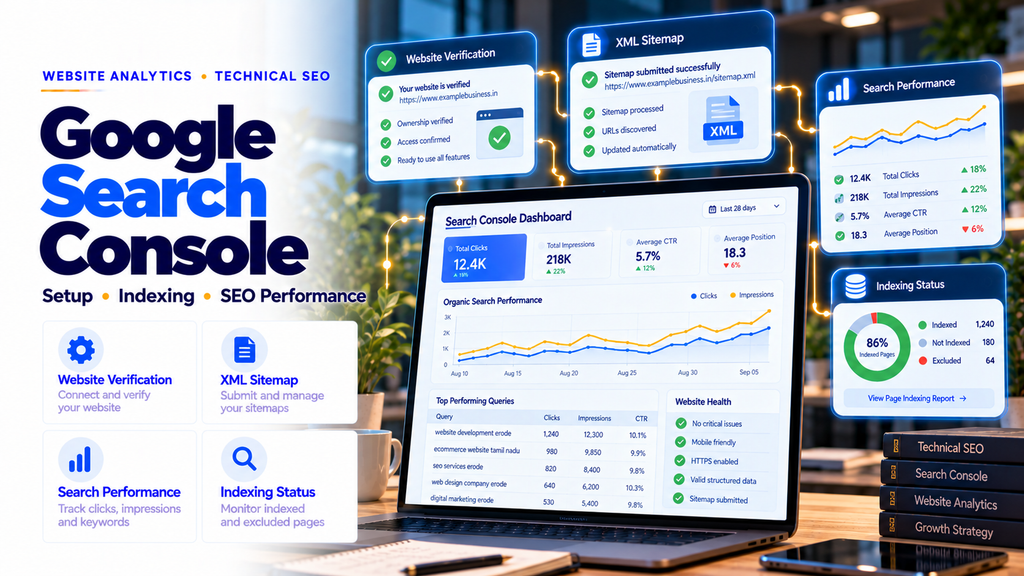
To set up Google Search Console, open the official Search Console website, add your website as a property, verify ownership, submit your XML sitemap and review the indexing and Performance reports. Monitor clicks, impressions, CTR, search queries and important landing pages regularly.
This complete guide explains Google Search Console setup, website verification methods, sitemap submission, indexing checks, keyword performance analysis, technical reports and ongoing SEO monitoring.
1. What Is Google Search Console?
Google Search Console, often called GSC, is a free website monitoring tool provided by Google.
It helps website owners understand how their website appears in Google Search and identify certain technical issues that may affect search visibility.
Search Console is useful for business owners, website developers, SEO professionals, ecommerce teams and digital marketing agencies.
2. Why Businesses Need Google Search Console
A business website may contain valuable content but still have indexing or visibility problems.
Google Search Console helps answer questions such as:
- Can Google index my important webpages?
- Which searches display my website?
- How many clicks does Google Search generate?
- Which service pages attract search visitors?
- Are important URLs excluded from indexing?
- Does Google report mobile usability or performance concerns?
- Are there structured data issues?
These insights help businesses make more informed SEO decisions.
3. Is Google Search Console Free?
Yes. Google Search Console is available free of charge.
You do not need to purchase an SEO subscription to use its core website monitoring features.
However, identifying and resolving website problems may require technical work, content improvements or professional assistance.
4. Google Search Console vs Google Analytics
Google Search Console and Google Analytics serve different purposes.
| Feature | Google Search Console | Google Analytics |
|---|---|---|
| Main Purpose | Monitor Google Search visibility | Understand website traffic and user behavior |
| Search Queries | Provides search query performance data | Not a complete organic keyword reporting tool |
| Indexing | Provides indexing diagnostics | Does not provide Google’s indexing status |
| Clicks and Impressions | Available in Search performance reports | Uses different traffic metrics |
| Conversions | Not a full conversion analytics platform | Can track configured key events and conversions |
Using both tools provides a more complete understanding of website discovery and visitor activity.
5. Requirements Before Setting Up Search Console
Before starting, make sure you have:
- A Google account
- Your business website URL
- Access to your domain DNS settings or website files
- Permission to manage the website
- An XML sitemap, if available
Domain verification typically requires DNS access.
URL-prefix properties offer additional verification methods.
6. How to Open Google Search Console
- Visit Google Search Console.
- Sign in using your Google account.
- Choose to add a website property.
- Select the appropriate property type.
- Follow the ownership verification instructions.
Once verification succeeds, you can begin reviewing available website information.
7. Domain Property vs URL-Prefix Property
Search Console offers two main website property types.
| Factor | Domain Property | URL-Prefix Property |
|---|---|---|
| Example | example.com | https://www.example.com/ |
| Coverage | All supported protocols and subdomains | Only URLs matching the specified prefix |
| Verification | DNS verification | Several supported methods |
| Best For | Complete domain monitoring | Specific website versions or sections |
For many business websites, a Domain property provides convenient overall coverage.
8. How to Verify a Domain Property Using DNS
- Open Google Search Console.
- Select Add Property.
- Choose Domain.
- Enter your root domain without https:// or www.
- Copy the DNS TXT verification record provided by Google.
- Open your domain’s DNS management panel.
- Add the TXT record using the values provided by Google.
- Save the DNS changes.
- Return to Search Console and select Verify.
DNS changes may take time to propagate.
9. Google Search Console Setup on Hostinger
Businesses using Hostinger can verify domain ownership through DNS when Hostinger manages their active DNS zone.
- Sign in to your Hostinger account.
- Open the domain’s DNS management area.
- Find the option to add a DNS record.
- Choose TXT as the record type.
- Enter the host and verification value supplied by Google.
- Save the record.
- Return to Google Search Console and verify ownership.
The exact Hostinger interface may change over time.
If your domain uses another DNS provider, update the record there instead.
10. URL-Prefix Verification Methods
Depending on the website and available integrations, URL-prefix verification methods may include:
- HTML file upload
- HTML meta tag
- Google Analytics
- Google Tag Manager
- DNS record verification
Choose a method supported by your website setup and access permissions.
11. Verify Ownership Using an HTML File
- Add a URL-prefix property.
- Choose HTML file verification.
- Download the verification file supplied by Google.
- Upload the unchanged file to the required website location.
- Confirm the file is publicly accessible at its specified URL.
- Return to Search Console and select Verify.
Keep the verification file in place to maintain ownership verification.
12. Verify Ownership Using an HTML Meta Tag
For supported URL-prefix properties, Google may provide a verification meta tag.
Place the exact tag supplied by Google inside the homepage’s HTML head section.
Save the website changes and select Verify in Search Console.
Do not replace the verification value with an example or remove the tag after verification.
13. Search Console Setup for WordPress Websites
WordPress website owners can use supported verification methods through their theme settings, SEO plugin or Google Site Kit.
Google Site Kit can simplify access to connected Google services.
Whichever method you use, confirm that the correct website property has been verified.
14. Search Console Setup for Shopify Websites
Shopify store owners can add a URL-prefix property and use a supported ownership verification method.
For Domain properties, verification is completed through the active DNS provider.
Use the store’s canonical domain and avoid confusing temporary or secondary domains with the main public website.
15. Search Console Setup for Custom Websites
Custom websites built using Laravel, Next.js, PHP or other frameworks can use standard verification methods.
For example:
- DNS verification for a Domain property
- HTML file verification where supported
- Meta tag verification in the page head
Ensure the verification method remains available after future website deployments.
16. What to Do After Website Verification
After verification:
- Confirm the correct property is selected.
- Check whether performance data is available.
- Submit your XML sitemap.
- Inspect the homepage URL.
- Review Page Indexing.
- Explore the Performance report.
- Check technical enhancement reports.
New properties may take time to display useful performance data.
17. What Is an XML Sitemap?
An XML sitemap is a file that lists important website URLs for search engine discovery.
A typical sitemap may be available at a URL such as:
https://example.com/sitemap.xml
The actual sitemap path depends on the website platform and configuration.
Sitemaps support URL discovery but do not guarantee indexing.
18. How to Submit an XML Sitemap
- Open your verified Search Console property.
- Select Sitemaps.
- Find the option to add a new sitemap.
- Enter the sitemap URL or path as requested.
- Select Submit.
- Review the submitted sitemap’s processing status.
Make sure the sitemap is accessible and contains the correct canonical URLs.
19. Common XML Sitemap Problems
Potential sitemap issues include:
- Incorrect sitemap URL
- Server errors
- Invalid XML
- URLs blocked by robots.txt
- Redirected URLs
- Noncanonical URLs
- URLs intentionally marked noindex
Investigate the specific reported issue before making changes.
20. What Is Website Indexing?
Indexing is the process through which Google analyzes and stores information about eligible webpages for possible use in Search.
A page can exist on your website without being indexed.
Likewise, being indexed does not guarantee that the page will appear for a particular search query.
21. How to Check Indexed Pages
- Open Google Search Console.
- Select the appropriate website property.
- Open the Page Indexing report.
- Review indexed and not-indexed page counts.
- Inspect the reasons associated with excluded URLs.
Not every excluded URL is a problem. Some URLs are intentionally excluded because they redirect, duplicate other pages or should not appear in Search.
22. Understanding Not-Indexed Pages
Search Console may report reasons such as:
- Crawled – currently not indexed
- Discovered – currently not indexed
- Excluded by noindex
- Blocked by robots.txt
- Page with redirect
- Alternate page with proper canonical tag
- Duplicate without user-selected canonical
- Not found (404)
- Server error
Each reason requires different investigation.
23. Crawled – Currently Not Indexed
This status indicates that Google crawled the page but did not index it at the time reflected by the report.
Possible next steps include:
- Review whether the content is useful and original.
- Check for duplicate or overlapping pages.
- Improve internal linking where appropriate.
- Confirm canonical settings.
- Review the live page for technical problems.
Google does not guarantee indexing after these changes.
24. Discovered – Currently Not Indexed
This status generally means Google knows about the URL but has not crawled it yet.
Review:
- Internal links
- Sitemap inclusion
- Server reliability
- Unnecessary duplicate URLs
- Overall website architecture
Prioritize important business pages rather than trying to index every generated URL.
25. Understanding Noindex Pages
A noindex directive tells compatible search engines not to include the page in their search indexes.
Noindex may be appropriate for certain utility pages.
However, accidental noindex directives on important service or product pages can prevent those pages from appearing in Google Search.
26. Canonical URL Problems
Canonicalization helps Google identify a preferred URL when multiple URLs contain substantially similar content.
Common situations include:
- HTTP and HTTPS variations
- WWW and non-WWW versions
- Tracking parameter URLs
- Duplicate product pages
- Multiple paths to similar content
Use appropriate canonical tags and consistent internal links.
27. How to Use URL Inspection
The URL Inspection tool provides information about Google’s understanding of a particular URL.
- Open Search Console.
- Enter the full page URL into the inspection field.
- Review indexing and canonical information.
- Use the live test when appropriate.
- Investigate reported issues.
This tool is particularly useful when a newly published page is not appearing in Search.
28. How to Request Indexing
For eligible URLs, Search Console provides an option to request indexing.
After checking the page and correcting important problems, use URL Inspection and select Request Indexing when available.
Requesting indexing does not guarantee indexing or improve rankings automatically.
29. Understanding the Performance Report
The Performance report helps website owners analyze visibility and traffic from Google Search.
Important metrics include:
- Total clicks
- Total impressions
- Average click-through rate
- Average position
Use these metrics together rather than treating any single number as a complete measure of SEO success.
30. What Are Total Clicks?
Total clicks measure how often users clicked a link to your website from the relevant Google search experience.
Clicks are useful for understanding search-driven visits, but they are not the same as enquiries or sales.
31. What Are Total Impressions?
Impressions indicate how often a link to your website was displayed in a Google search experience under Google’s reporting rules.
Increasing impressions can indicate broader search exposure.
However, impressions alone do not mean customers visited your website.
32. What Is Click-Through Rate?
Click-through rate, or CTR, represents the percentage of impressions that resulted in clicks.
The formula is:
CTR = (Clicks / Impressions) × 100
For example, if a page receives 100 clicks from 5,000 impressions:
CTR = (100 / 5000) × 100
CTR = 2%
CTR varies by query, position, search appearance and user intent.
33. What Is Average Position?
Average position is a Search Console metric describing the average position of a site’s or page’s topmost search result under Google’s reporting rules.
It should not be interpreted as a permanent ranking for one keyword.
Search positions can vary by query, location, device and search experience.
34. How to Find Keywords in Search Console
- Open the Search results Performance report.
- Select the Queries tab.
- Review search terms associated with your website.
- Compare impressions, clicks and CTR.
- Identify queries relevant to your services.
Some search queries are omitted or grouped because of privacy and reporting limitations.
35. How to Identify High-Impression, Low-CTR Keywords
Queries with substantial impressions and relatively few clicks may deserve closer investigation.
Review:
- Search intent
- Page title
- Displayed snippet
- Average position
- Competing search features
- Landing page relevance
Do not assume that a low CTR always indicates a problem. Some queries naturally produce fewer clicks.
36. How to Find Your Best-Performing Pages
Use the Pages tab in the Performance report.
Review which URLs receive the most clicks and impressions.
Compare:
- Homepage
- Service pages
- Product pages
- Blog articles
- Location pages
Identify which page types contribute meaningful search visibility.
37. How to Identify Underperforming Pages
A page may underperform for several reasons.
Potential factors include:
- Limited relevant content
- Search intent mismatch
- Technical indexing issues
- Weak internal linking
- Outdated information
- Low search demand
Compare pages with similar purposes before deciding what to improve.
38. How to Compare SEO Performance Over Time
Search Console supports date range comparisons.
Useful comparisons include:
- Last 28 days versus previous 28 days
- Last three months versus previous three months
- Year-over-year performance
Consider seasonal demand, website changes and search behavior when interpreting differences.
39. Tracking Local Keywords for Erode Businesses
Businesses in Erode can use Search Console to understand relevant location-based search queries.
Examples of possible searches include:
- Website development company in Erode
- SEO services in Erode
- Ecommerce website development Erode
- Software development company Erode
- Website maintenance services Erode
These are example keywords, not verified rankings or Search Console results for any particular business.
40. Tracking Location Page Performance
Businesses with genuine service-area pages can filter performance by URL patterns.
For example, if location pages are stored in a dedicated directory, filter the Pages report to review that directory.
Useful measurements include:
- Impressions
- Clicks
- CTR
- Search queries
- Indexing status
Avoid creating near-identical location pages simply to increase the number of indexed URLs.
41. Tracking Blog SEO Performance
Blog performance should be reviewed separately from service page performance when practical.
Useful questions include:
- Which articles attract relevant searches?
- Which articles receive clicks?
- Which topics have growing impressions?
- Are articles internally linked to relevant services?
- Are important articles indexed?
Blog traffic is most useful when it supports relevant business goals.
42. Understanding Country and Device Reports
Search Console can show performance grouped by country and device.
Businesses can review whether relevant searches occur primarily on mobile or desktop devices and which countries contribute search exposure.
This can inform content, usability and international SEO decisions.
43. Core Web Vitals in Search Console
Core Web Vitals reports help website owners understand aspects of real-world page experience.
Important metrics include:
- Largest Contentful Paint (LCP)
- Interaction to Next Paint (INP)
- Cumulative Layout Shift (CLS)
Use these reports to identify groups of URLs that may benefit from performance improvements.
44. Understanding Largest Contentful Paint
LCP measures how quickly the largest relevant visible content element loads.
Common improvement areas include:
- Image optimization
- Server response time
- Efficient resource loading
- Reducing unnecessary render-blocking resources
45. Understanding Interaction to Next Paint
INP evaluates responsiveness to user interactions.
Potential improvements include reducing unnecessary JavaScript work and optimizing expensive event handlers.
Better responsiveness supports usability, especially on mobile devices.
46. Understanding Cumulative Layout Shift
CLS measures unexpected visual movement during the page experience.
Common causes include:
- Images without reserved dimensions
- Dynamic content insertion
- Late-loading interface elements
- Layout changes caused by fonts
47. Structured Data and Enhancement Reports
Search Console may provide reports for supported structured data and search enhancements.
These reports can help identify markup problems.
Not every Schema.org type has a dedicated Search Console enhancement report.
Structured data does not guarantee rich results.
48. Understanding Manual Actions
The Manual Actions report shows whether Google has applied certain manual actions to the property.
If an action is reported, review the details and Google’s guidance before making changes.
Resolve the underlying issue before submitting a reconsideration request where applicable.
49. Security Issues in Search Console
Search Console may notify website owners about certain security problems.
Potential concerns include compromised content or other harmful website behavior.
Investigate security alerts promptly and follow appropriate remediation guidance.
50. Connecting Search Console with Google Analytics
Google Analytics and Search Console can be used together to understand search discovery and on-site activity.
Where supported, configure the Search Console integration within your Google Analytics property.
Use Search Console to understand Google Search exposure and Google Analytics to evaluate website engagement and configured key events.
The two tools use different measurement systems, so clicks and sessions will not always match.
51. Measuring SEO Leads and Enquiries
Search traffic is valuable when it supports business outcomes.
Relevant website actions may include:
- Contact form submissions
- Phone link clicks
- WhatsApp link clicks
- Appointment requests
- Quotation requests
- Ecommerce purchases
Use appropriate analytics event tracking to measure these actions.
Search Console itself is not a complete lead attribution system.
52. Creating Monthly SEO Reports
A practical monthly SEO report may include:
- Organic search clicks
- Search impressions
- CTR
- Relevant search queries
- Top-performing pages
- Important indexing changes
- Core Web Vitals observations
- Completed SEO improvements
- Qualified enquiries where tracked
Explain meaningful changes rather than presenting numbers without context.
53. Weekly Search Console Monitoring Checklist
- Review recent search performance.
- Check important indexing issues.
- Inspect newly published priority pages.
- Review significant traffic changes.
- Identify relevant high-impression queries.
- Check security or manual action notifications.
- Record important findings.
The frequency can be adjusted to the size and activity of the website.
54. Monthly SEO Performance Checklist
- Compare clicks and impressions with a relevant previous period.
- Review service page performance.
- Review blog performance.
- Check important location pages.
- Investigate unexpected indexing changes.
- Review Core Web Vitals.
- Identify content improvement opportunities.
- Review tracked enquiries and conversions.
- Document completed actions and next priorities.
55. Common Google Search Console Mistakes
- Verifying the wrong URL-prefix property
- Adding DNS records to the wrong DNS provider
- Submitting an incorrect sitemap path
- Assuming sitemap submission guarantees indexing
- Trying to index every excluded URL
- Ignoring canonicalization problems
- Misinterpreting average position as a fixed ranking
- Confusing impressions with website visits
- Comparing Search Console clicks directly with Analytics sessions
- Ignoring business conversions
- Removing verification records after setup
56. Google Search Console for Ecommerce Websites
Ecommerce websites can use Search Console to monitor product, category and informational page visibility.
Important considerations include:
- Product URL indexing
- Duplicate product variations
- Canonical tags
- Product structured data
- Category page performance
- Important product-related queries
Use appropriate merchant and product tools where relevant.
57. Google Search Console for Manufacturing Websites
Manufacturing companies can monitor whether product and capability pages attract relevant searches.
For example, textile businesses in Erode may review searches related to:
- Product categories
- Fabric specifications
- Manufacturing capabilities
- Wholesale enquiries
- Industrial applications
Use this information to improve relevant product and service content.
58. Google Search Console for Local Service Businesses
Local service providers can use Search Console to understand the visibility of service pages and relevant geographic searches.
Potential service areas across Erode district include Erode, Perundurai, Bhavani, Anthiyur, Gobichettipalayam, Sathyamangalam, Modakkurichi, Kodumudi, Nambiyur, Chennimalai, Kavindapadi and Ammapettai.
Search Console provides search performance data, not a complete Google Maps ranking report.
59. Google Search Console and AI Search
Search Console is useful for understanding visibility within Google’s search experiences.
AI-related search features and reporting may evolve over time.
Review Google’s current documentation and the reports available in your property rather than assuming that every AI-generated mention is measured separately.
Search Console does not measure all activity on independent AI search platforms such as ChatGPT.
60. How to Prioritize SEO Improvements
Not every reported issue deserves equal attention.
A practical order is:
- Resolve major website accessibility and server problems.
- Investigate indexing problems on important business pages.
- Correct serious canonicalization issues.
- Improve service and product page relevance.
- Strengthen internal links.
- Address meaningful usability and performance problems.
- Improve relevant content based on search demand.
- Monitor outcomes over time.
Focus first on issues that affect important pages and customer journeys.
61. How Much Does Google Search Console Setup Cost?
Google Search Console itself is free.
Professional setup or SEO support may involve costs depending on the required work.
Possible services include:
- Domain verification
- Sitemap configuration
- Technical SEO audit
- Indexing issue investigation
- Structured data corrections
- Analytics integration
- Performance reporting
Request a clear scope of work before paying for professional assistance.
62. Google Search Console Setup Services in Erode
Businesses in Erode and nearby areas may need technical support with Search Console setup, sitemap submission, indexing investigation and ongoing SEO reporting.
A suitable service provider should explain:
- Which property will be verified
- Who retains ownership access
- What technical checks are included
- How issues will be documented
- What performance reports will be provided
Businesses should retain appropriate ownership and administrative control of their website and Google properties.
63. How Greap Technologies Can Help
Greap Technologies provides website development, SEO and digital marketing solutions for businesses.
For organizations seeking better search monitoring, potential work may include:
- Google Search Console setup
- Website ownership verification
- XML sitemap configuration
- Indexing issue analysis
- Technical SEO reviews
- Search performance reporting
- Service page optimization
- Website performance improvements
- Analytics integration planning
Specific services and deliverables should be confirmed before implementation.
Visit Greap Technologies to explore website development and SEO services.
Conclusion
Google Search Console is one of the most useful free tools for understanding how a business website performs in Google Search.
It helps website owners verify their properties, submit sitemaps, investigate indexing issues, monitor search queries and evaluate important performance metrics.
For businesses in Erode and across Tamil Nadu, consistent monitoring can help identify technical problems and opportunities to improve important webpages.
The most effective approach combines Search Console insights with useful website content, technical SEO improvements and appropriate conversion tracking.
Website Verification → Sitemap Submission → Indexing Review → Search Performance Analysis → SEO Improvements → Conversion Tracking → Ongoing Monitoring.
Need Help Setting Up Google Search Console?
Greap Technologies can help you discuss website verification, sitemap configuration, indexing issues and SEO performance monitoring.
Discuss Search Console SetupWebsite: www.greap.in
Phone: +91 70923 30168
Frequently Asked Questions
1. What is Google Search Console?
Google Search Console is a free tool that helps website owners monitor Google Search performance and investigate technical search issues.
2. Is Google Search Console free?
Yes. Google Search Console is available free of charge.
3. How do I add my business website to Search Console?
Open Search Console, add a website property, select a verification method and complete the ownership verification process.
4. What is the difference between Domain and URL-prefix properties?
Domain properties include supported protocols and subdomains. URL-prefix properties include only URLs matching the specified prefix.
5. How do I submit a sitemap?
Open the Sitemaps report in your verified property, enter the correct sitemap location and submit it.
6. Does sitemap submission guarantee indexing?
No. A sitemap supports URL discovery but does not guarantee indexing.
7. Why is my page not indexed?
Possible reasons include noindex directives, duplicate content, canonicalization issues, crawl delays and other technical or content-related factors.
8. How do I request indexing?
Use the URL Inspection tool to review an eligible URL and request indexing when the option is available.
9. What are impressions in Search Console?
Impressions measure how often a link to your website appeared in the relevant Google search experience under Google’s reporting rules.
10. What is CTR in Google Search Console?
CTR is the percentage of impressions that resulted in clicks, calculated as clicks divided by impressions multiplied by 100.
11. Can Search Console show keyword rankings?
Search Console provides search query performance and average position metrics, but average position is not a fixed ranking for every user.
12. Can Greap Technologies help with Search Console setup?
Greap Technologies can discuss Search Console verification, sitemap configuration, indexing reviews and SEO reporting requirements based on an agreed project scope.